
Create a route
Tie a compliant page to your store and the Meta pixel that should fire, then install the gate snippet so your ad traffic is tracked and redirected.
A route connects three things: your compliant page (where the ad points), your destination (where shoppers land on your store), and the Meta pixel that should fire for that traffic. Once a route is live, you point your Meta ad at the compliant domain and Zappush handles the rest.
You need at least one compliant page and one Meta connection before you can create a route. The form will tell you if either is missing.
Create the route
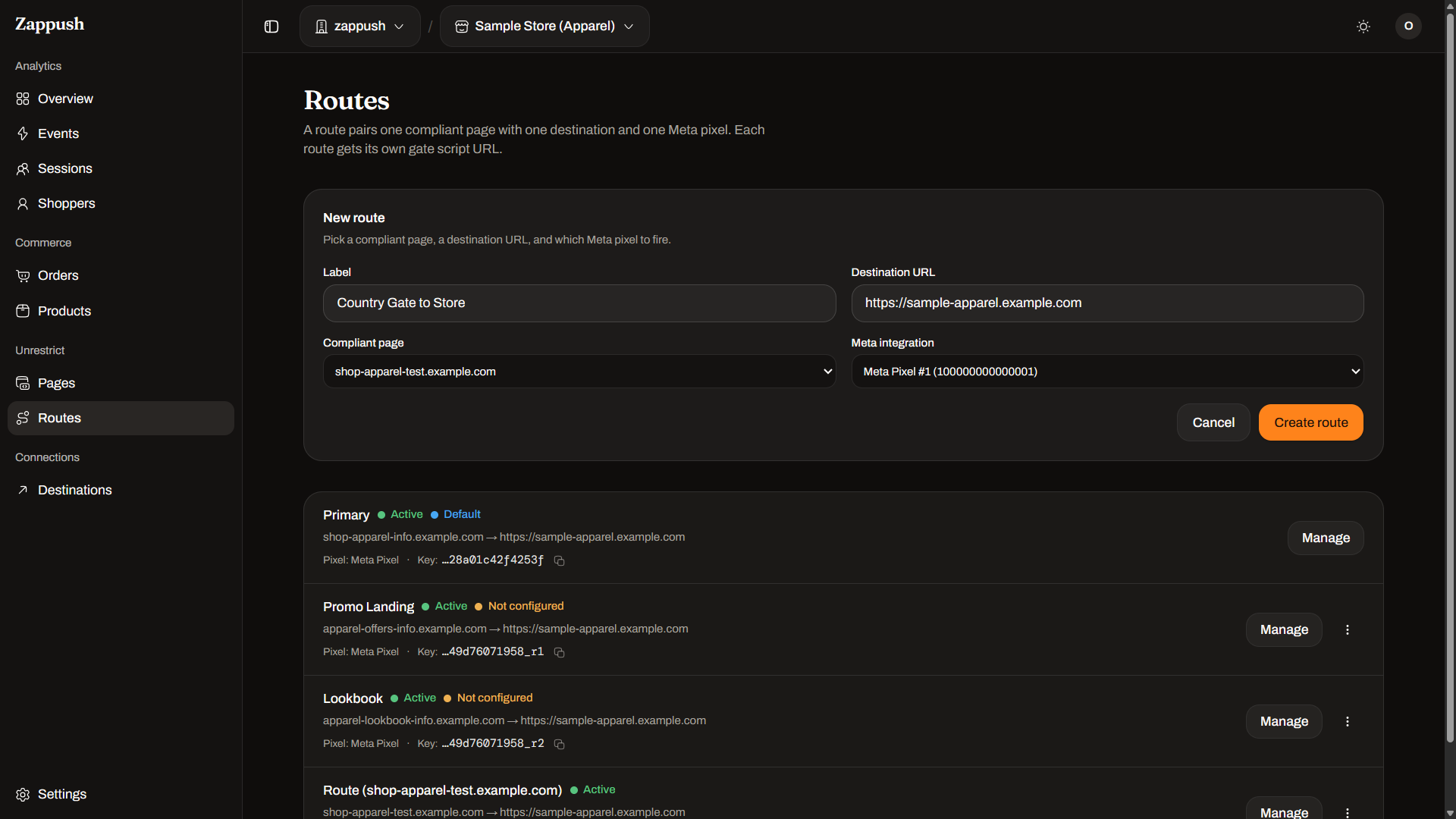
- In the sidebar, open Routes, then click Add route.
- Fill in the form:
- Label: a name you will recognize, for example
Spring sale → store. - Destination URL: where gated shoppers land on your store, for example
https://yourstore.com/spring. - Compliant page: pick the compliant domain you set up.
- Meta integration: pick the pixel that should fire for this traffic. Each option shows its label and Pixel ID.
- Label: a name you will recognize, for example
- Click Create route.
Install the gate snippet
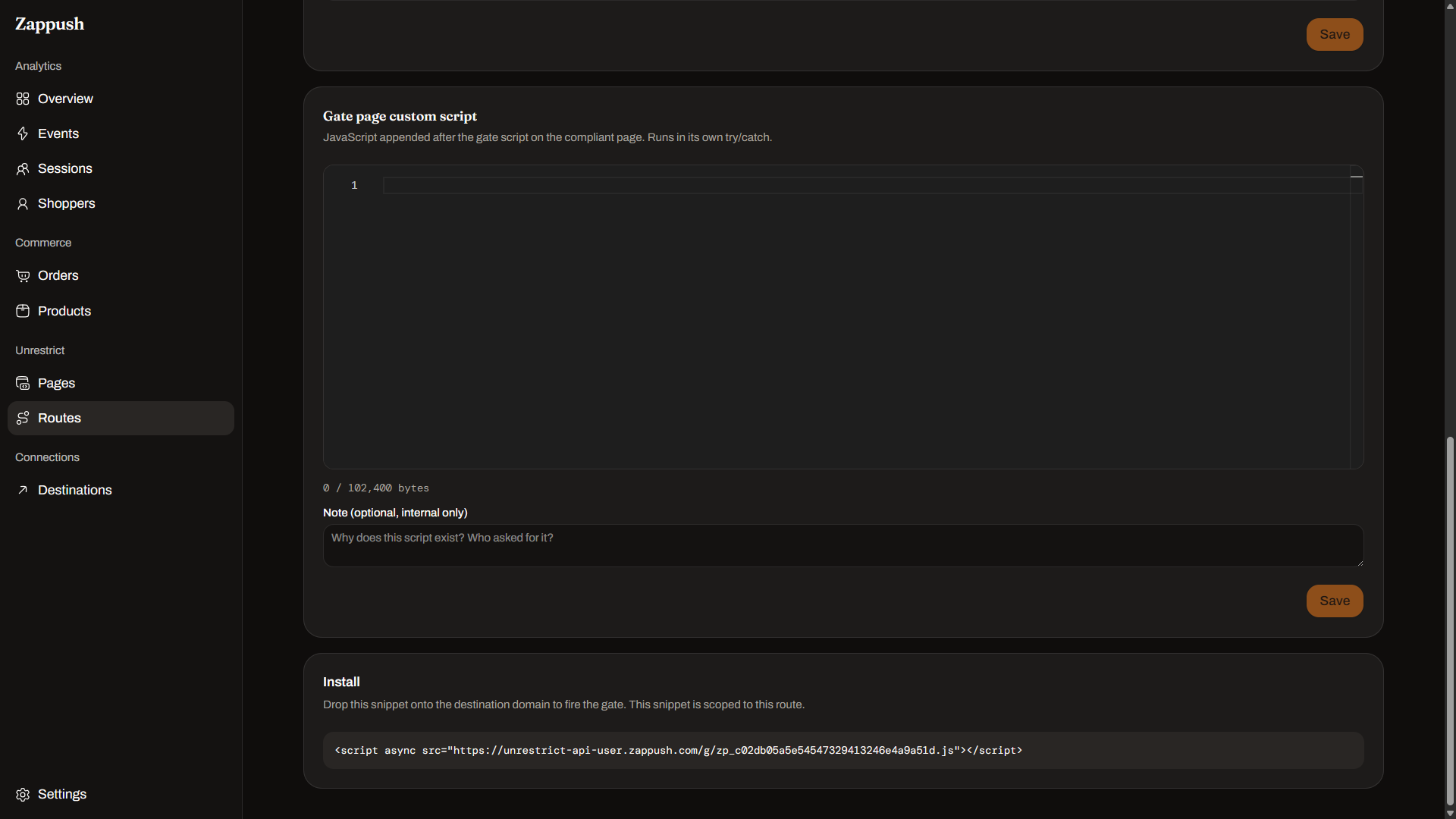
After the route is created, open it and find the Install section. It gives you a one-line snippet for your compliant page:
<script defer src="https://api.zappush.com/g/your-route-key.js"></script>Copy the exact snippet from the route (the key is unique to it) and add it to your
compliant page's <head>. If Zappush hosts your compliant page, this is already
handled for you.
Choose how ads reach your store
Every route uses one of two strategies:
- OneHop (the default): ads point at your compliant page, shoppers pass through it, and are redirected to your store. Point your ad at the compliant domain and you're done.
- ZeroHop: ads point straight at your store, with no compliant page in between. Because nothing runs before the landing, the route needs a code pasted into the ad so Zappush knows which route the traffic belongs to. Your route's detail page shows this code and exactly where to paste it.
Every route also gets a short code you can use with either strategy. Under OneHop it breaks ties when two routes share one compliant page; under ZeroHop it's the only way traffic is attributed. Find it, with a copy button, on the route's row in your Routes list and on its detail page.
Point your ad at the compliant page
In Meta Ads Manager, set the ad's destination to your compliant domain instead of your store. Shoppers see the clean page, continue, and are redirected to your destination URL, while the route fires conversions to the pixel you chose.
You can run several routes on one store, each with its own compliant page and pixel, to send different campaigns to different pixels or test landing pages. Manage them all under Routes.
You'll know it worked when
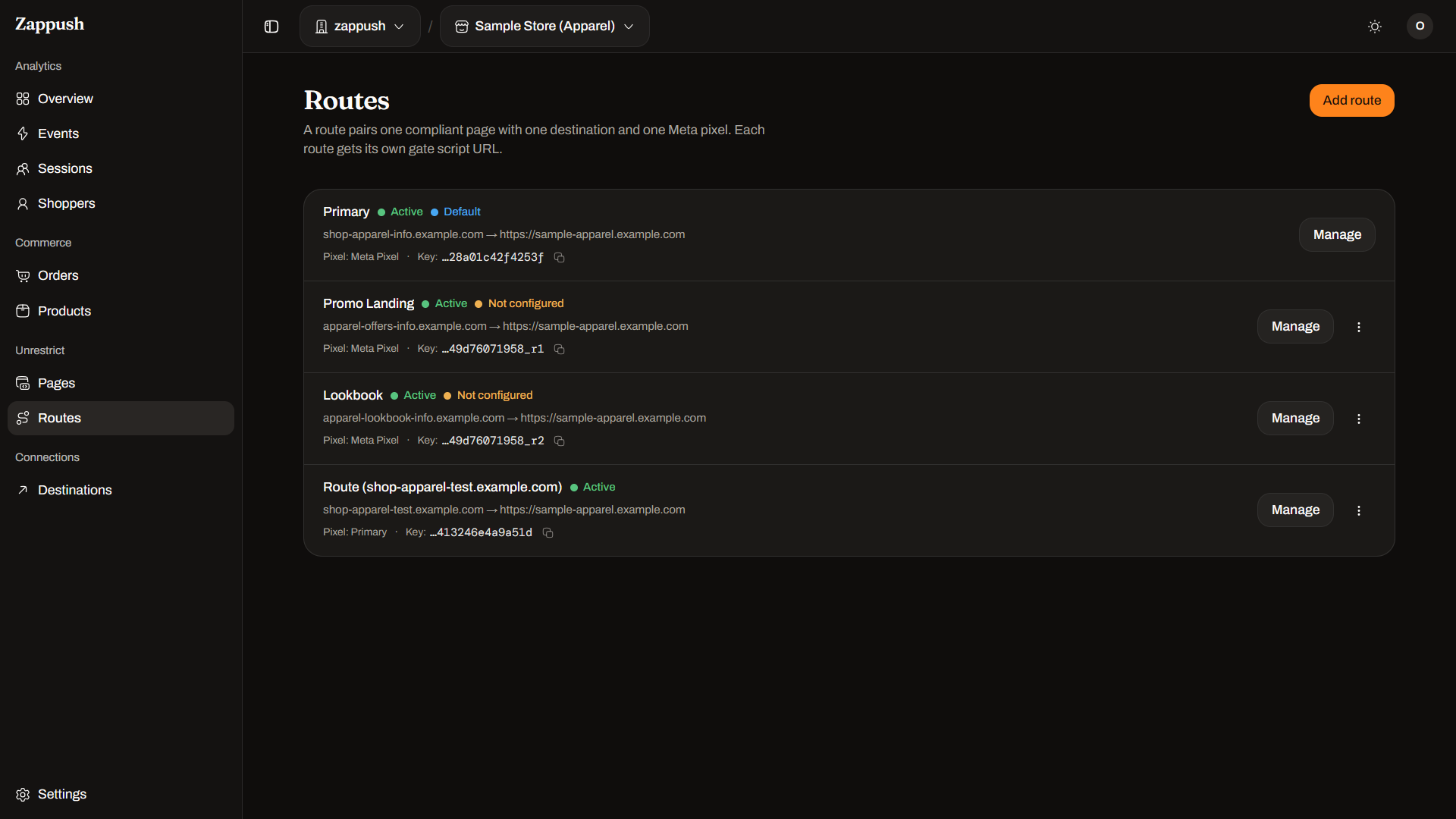
The new route appears in your Routes list and is active. Loading the compliant page redirects to your destination URL, and traffic starts showing against the route in your analytics.
Next: Verify delivery.
Set up a compliant page
Host a clean landing page on a fresh domain that your Meta ads point to, and verify it with DNS, so Health and Wellness brands keep advertising.
Verify delivery
Confirm your conversions are actually reaching Meta, not just firing in the browser, using your Zappush analytics and Meta's Test Events tool.